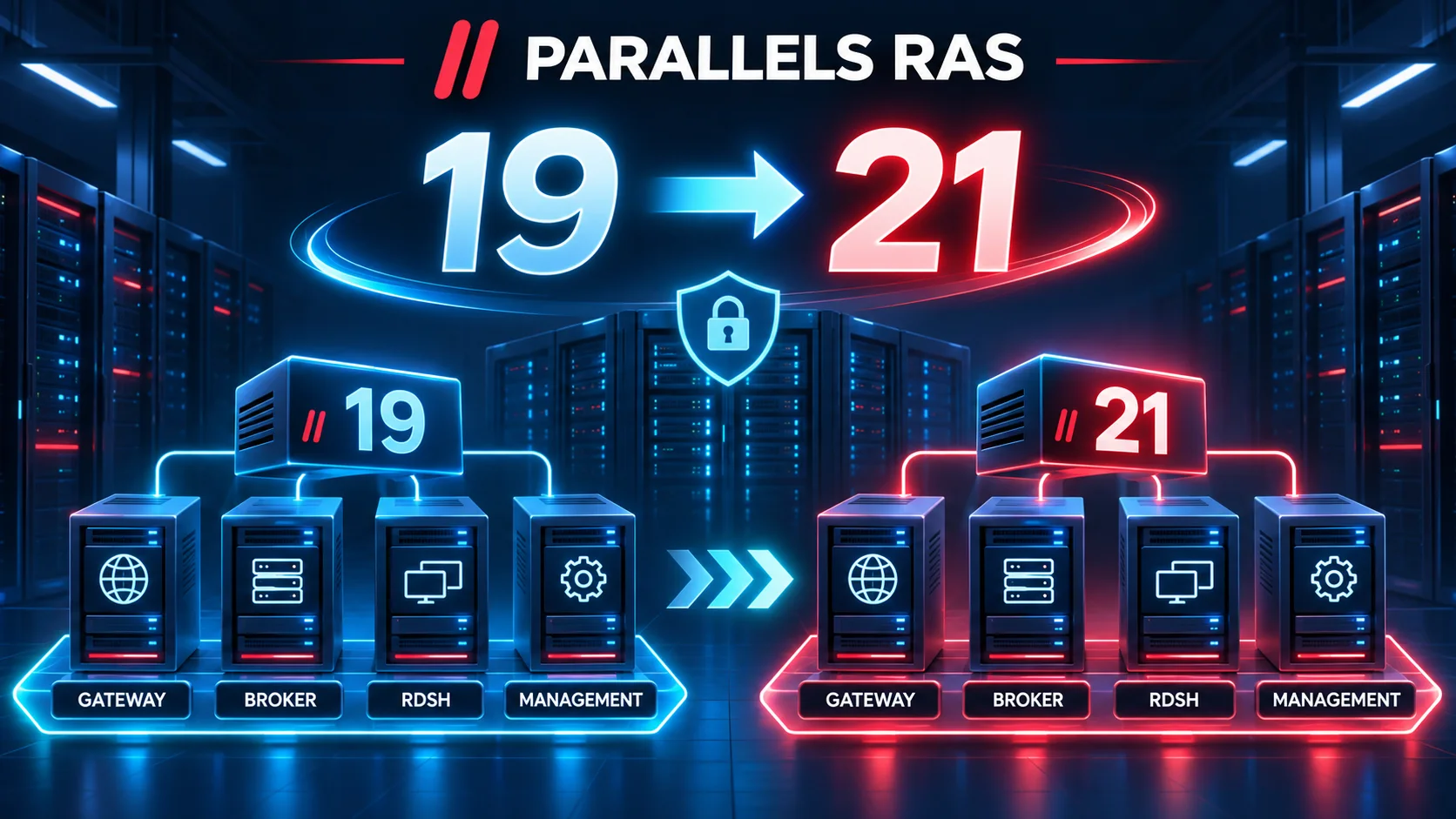
The Parallels RAS console offers an automatic update option via Administration > Settings > Check now. On a single-server setup, that’s fine. On a distributed farm with brokers separated from Secure Gateways, HALBs, and optional servers, it’s a bad idea: the console updates components in whatever order it chooses, with no control on your end, and can leave the farm in an inconsistent state.
This article documents the correct procedure for upgrading from v19 to v21 on a real multi-component architecture. Everything here has been validated in lab and production environments.
Important note on downloads: new versions appear on the official download page up to a week before they are published to the repository queried by the RAS console. Always download installers manually from the Parallels website — never rely on the console’s built-in update check.
Target architecture
This article is aimed at farms with components installed on separate servers. Typically: 2 or 3 RAS Connection Brokers, 2 Secure Gateways, 2 HALBs, RDSH hosts or VDI pools based on templates, and optionally a Performance Monitor server and a Reporting Service server.
Before you start
- Download all installers from parallels.com/products/ras/download/links/: RASInstaller, RASAgentsInstaller, RASPerformanceMonitor, RASReporting, and the new HALB appliance
- Export RAS configuration: RAS Console > Administration > Export
- Take snapshots of all VMs (brokers, SG, HALB, Reporting)
- Save the license key: RAS Console > Licensing
- Identify the primary broker (the one holding the license)
- Confirm the farm is 100% green before starting
- Notify the client of planned outage windows
Update order
1. Primary broker first
The most counter-intuitive point: the primary broker is updated first, not last. Before running the installer on the primary, manually stop these three services on all secondary brokers: Parallels RAS Redundancy Service, Parallels RAS Connection Broker Service, and RAS Provider Service.
Tip: in services.msc, sort by the Description column to group all Parallels services together.
Run the installer on the primary broker. A reboot is required. During the restart, the RAS Console loses connection — this is normal. Clients may see a transient error but reconnect automatically once the broker is back. v19 agents communicate correctly with a v21 broker during the transition.
2. Secondary brokers
Upgrade secondary brokers one at a time. After each upgrade, restart the services stopped in step 1 and verify the broker is green before moving on.
3. Secure Gateways
⚠️ During a Secure Gateway upgrade, all tunneled sessions through that SG are terminated. This is a hard disconnect, not a brief blip. Plan outside business hours and notify the client. Upgrade SG 1 while SG 2 serves, then swap.
4. HALB
⚠️ Older HALB versions are not compatible with RAS v21. Download the new appliance before the maintenance window. Start with the passive HALB. Updating the active HALB also causes a connection outage during switchover — same logic as the Secure Gateways.
5. RDSH and Remote PC agents
From the RAS Console: Farm > Site > Tasks > Upgrade all Agents. No user session interruption. v19 agents work correctly with v21 brokers during the transition, but updating them remains mandatory. In template-based environments, rebuilding pool hosts from the updated template should be scheduled separately with the client.
6. Enrollment Servers
Enrollment Servers are RAS agents like any other — update them from the RAS Console by right-clicking each Enrollment Server > Update Agent, or via Tasks > Upgrade all Agents. During the agent restart, new SAML authentications requiring smartcard certificate issuance will transiently fail. Already established sessions are not impacted. If you have two Enrollment Servers in high availability, update the first one, verify it is green, then proceed to the second.
7. Performance Monitor
Run RASPerformanceMonitor-21.1.26542.msi over the existing version. No uninstall, no reconfiguration. Historical data is preserved. After restart, verify the dashboard is accessible in the Monitoring tab. If not, check that TCP port 3000 is available.
8. Reporting Service
⚠️ Updating the Reporting Service wipes report history. Inform the client before starting — this is the only irreversible impact of the entire procedure. SQL Server Express 2022 and SSRS 2022 are natively compatible with RAS v21 — do not touch them. Run RASReporting-21.1.26542.msi, select Localhost as database location, confirm the instance name is RASREPORTING (case-sensitive), then validate via Administration > Reporting > Test Connection.
Post-upgrade validation
- All brokers, SG, HALB and agents green in the RAS Console
- License count: RAS Console > Licensing > Concurrent UBL
- Test a full end-user connection
- Verify Performance Monitor dashboard (Monitoring tab)
- Test Reporting connection (Administration > Reporting > Test Connection)
Official references
- KB 131036 — Upgrading to Parallels Remote Application Server 21
- KB 131037 — Parallels RAS v21 Release Notes
- KB 125164 — Reporting Service with SQL Server 2022
- KB 124973 — Performance Monitor installation
- Download Parallels RAS v21 components