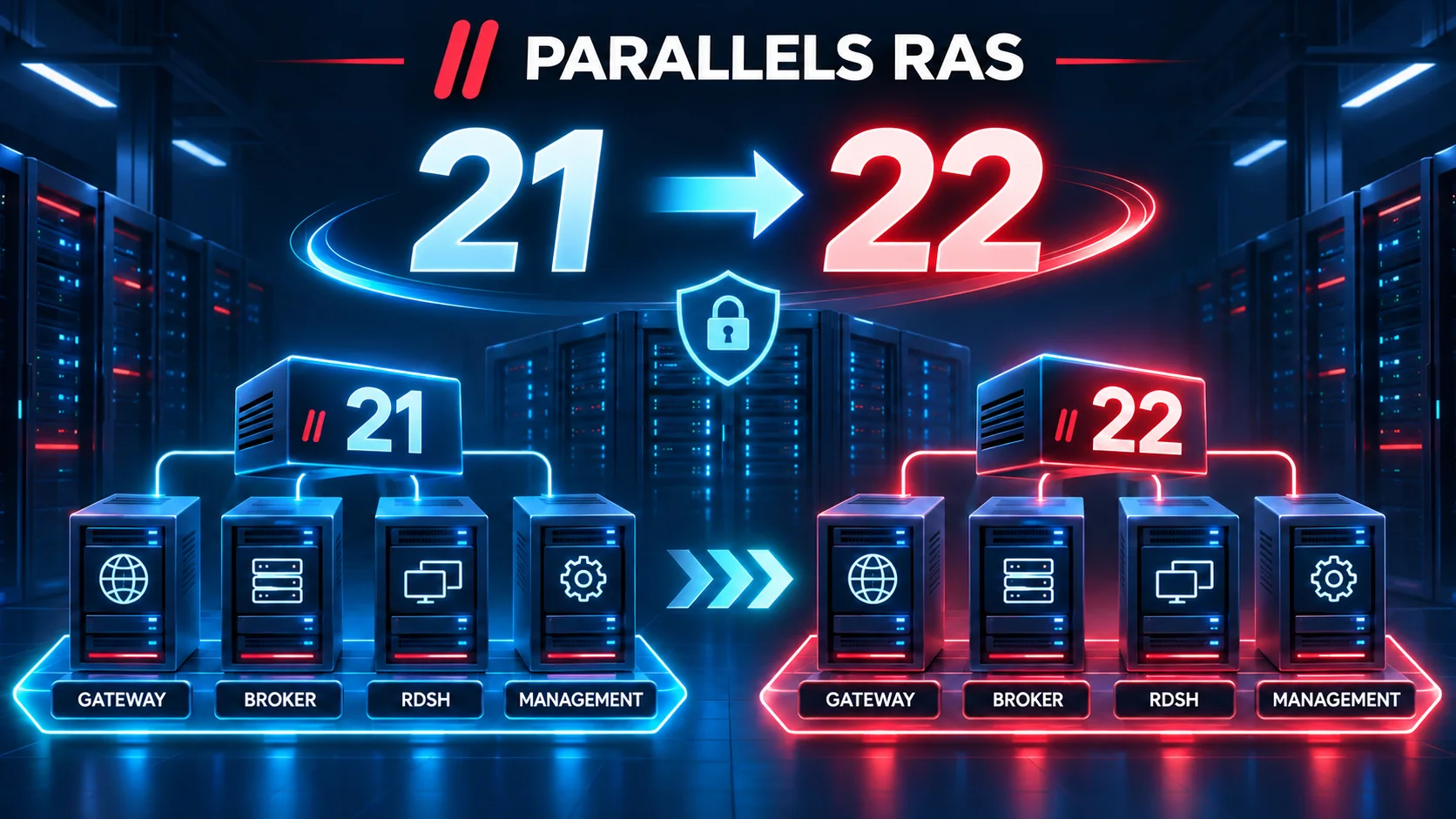
The console’s Check for Updates button is handy in a lab, but on a distributed farm it updates components in an order you don’t control — and that’s where the nasty surprises come from. Here is the manual, ordered procedure I use in production to move from v21 to v22, validated in the lab beforehand. And a word up front: v22 drops several operating systems and components, so check compatibility before you launch anything.
v22 was released on 29 October 2026 (build 22.0.0.28160; HALB appliance 22.0.0.1-28161 since 4 November).
What you gain in 22
On security alone, this is a strong release:
- Device Posture before connection: the endpoint’s compliance (antivirus, OS, browser) is checked before the session opens.
- SAML as a second factor (MFA) and public IP filtering: different authentication rules depending on whether the connection is internal or external.
- Secure Gateway hardening with rate limiting against bursts of connection attempts.
- Trusted farm verification: an unapproved server can no longer join the deployment.
- File Access: Windows SMB shares directly in the User Portal.
- On the platform side: support for hybrid AVD deployments, VMware vSphere 9 as a VDI provider, agent updates in Drain Mode on RD Session Hosts, host uptime display, and session recording (experimental).
Check first: the dropped operating systems and components
This is the real trap of this upgrade. If any of these is still in your estate, deal with it before upgrading:
- Windows Server 2012 R2 is no longer supported for the RD Session Host agent.
- SQL Server and SSRS 2016 are no longer supported by Reporting: you need 2019 or 2022.
- Older HALB appliances and older Reporting versions are not supported with v22.
- FSLogix 25.09 is removed, 26.08 is added.
- On endpoints and clients: end of support for 32-bit Windows 10 (client and PC/Guest agents), macOS 13, iOS/iPadOS 17, Android 10 and 11, Debian 11, Fedora 40/41 and IGEL OS 11.
On the plus side, v22 adds support for vSphere 9, macOS 27, iOS/iPadOS 27, Android 17, Ubuntu 26.04 and Azure Stack HCI Core Edition for the Hyper-V provider.
The target architecture
We assume a typical farm: one or more Connection Brokers, Secure Gateways, HALB appliances in front of the gateways, and RDSH or VDI hosts — all on separate servers, with an optional dedicated Performance Monitor and Reporting.
Before you start
- ⚠ Fully patch Windows Server 2022 before running the installer. On an unpatched WS2022 running on hardware with CET (Control-flow Enforcement Technology), .NET may fail to initialize: the RAS Web Administration service won’t start and the installation (or upgrade) is rolled back. Aim for at least build 21H2, OS Build 20348.5622, reboot, then re-run the installer as administrator. Parallels does not install Windows updates for you; if you can’t patch, install on Windows Server 2025.
- Check your upgrade insurance: it is not automatically included with a support contract.
- Read the v22 release notes: new features, software requirements, Microsoft licensing, VDI provider support.
- Export the farm configuration and store it elsewhere.
- Snapshot every virtual server, the license server first.
- Save the license key (RAS Console → Licensing) and record the installation details (Help → About).
- Make sure the console server has internet access (installation and activation).
- Schedule it off-hours, confirm a healthy farm, identify the primary broker, and download the installers from the Parallels site rather than through the console.
The upgrade order
1. The primary broker first
This is the least intuitive point: you upgrade the primary before the secondaries. If you have several Connection Brokers, first stop, on each secondary broker, the Redundancy Service, the Connection Broker Service and the Provider Agent Service — otherwise you risk data loss. Then run the installer on the primary, reboot if required. If the installer fails on “Service RAS Web Administration failed to start” and rolls back, it’s neither privileges nor the firewall: it’s the unpatched WS2022 + CET combo covered above — update the server and retry.
2. The secondary brokers
One at a time. Upgrade, restart the services you stopped, and confirm each broker is healthy before moving to the next.
3. The Secure Gateways
⚠ Upgrading a gateway drops all of its tunneled sessions. Schedule off-hours and upgrade one gateway at a time while the other keeps serving traffic.
4. The HALB appliances
From the field: while the broker and then the Secure Gateways are being upgraded, the HALB appliances keep load-balancing traffic. So you can replace the appliances one at a time, with no outage — always the passive node first, validate, switch over, then do the other. Note: HALB has no in-place upgrade, and an older appliance is not supported in the long run with a v22 farm. So deploy the new 22.0 appliance, reusing the old one’s network configuration, and don’t stay on mixed versions once the migration is done. (See Inside HALB for a tour of the appliance.)
5. The RDSH, Remote PC and VDI agents
They are updated from the console, without cutting active sessions. ⚠ But until a host is updated, no new session can open on it: prioritize your high-availability hosts. A welcome addition in 22: agent updates in Drain Mode, which preserve the host’s drain state. Template-based pools require a separately scheduled clone recreation; host pools can use Auto-upgrade.
6. The Enrollment Servers
Treat them as agents, one at a time in high-availability setups. During restarts, new smartcard-based SAML logins may fail briefly.
7. The Performance Monitor
Install the new MSI over the existing one: history is preserved. Check the dashboard and port 3000.
8. The Reporting Service
⚠ The only irreversible step: report history is wiped. First confirm you are on SQL Server / SSRS 2019 or 2022 (2016 is no longer supported). Keep the instance name and run the connection test.
Post-upgrade validation
- All components green and verified in the console.
- The Concurrent UBL count matches your purchased user licenses.
- A real end-user test (logon, published app).
- The Performance Monitor dashboard responds.
- The Reporting connection test passes.
- Reboot any servers that still ask for it.
Sources
- KB 131036 — Upgrading to Parallels RAS 22
- KB 131219 — Parallels RAS v22 latest updates / release notes
- KB 131239 — Installation or upgrade to RAS v22 fails (WS2022 / CET)
- KB 125167 — Updating HALB appliances
- KB 130139 — Auto-upgrade of host pools
- Parallels RAS download page