
When thinking about Parallels RAS performance, we often focus on RDSH sizing, FSLogix profile optimization, or network bandwidth. But there is one parameter that often flies under the radar and yet radically changes the user experience: the RDP session transport protocol. TCP or UDP — this choice directly impacts session fluidity, especially on imperfect networks.
The good news: Parallels RAS enables UDP by default. The less good news: several elements in your network environment can silently disable it without you knowing.
TCP vs UDP: The Netflix Analogy
To understand why UDP is preferable to TCP for an RDP session, think about Netflix. Netflix uses QUIC — a UDP-based protocol. Because in the event of packet loss, QUIC continues sending subsequent data and corrects errors on the fly. A micro network interruption translates into a slight image degradation for a fraction of a second, imperceptible to the user.
If Netflix used TCP, every packet loss would cause a complete stream halt while waiting for retransmission. The video freezes. The user waits. This is exactly what happens with RDP in TCP mode: a micro network interruption freezes the session, the screen locks, and the user calls support. In UDP mode, RAS applies an error correction mechanism similar to video streaming — the session continues seamlessly.
The 4 Parallels Client Connection Modes
- Gateway Mode (default port 80) — client passes through the Secure Gateway without SSL encryption. Typical usage: trusted internal network. UDP supported.
- Gateway SSL Mode (default port 443) — same but with end-to-end SSL/TLS encryption. UDP supported via DTLS. Recommended in production.
- Direct Mode — client connects directly to the RDSH without going through the gateway. The broker handles initial redirection only. Reserved for LAN with direct RDSH access.
- Direct SSL Mode — identical to Direct Mode but with SSL encryption.
In production, Gateway SSL Mode on port 443 covers all cases without compromise.
UDP Enabled by Default in RAS
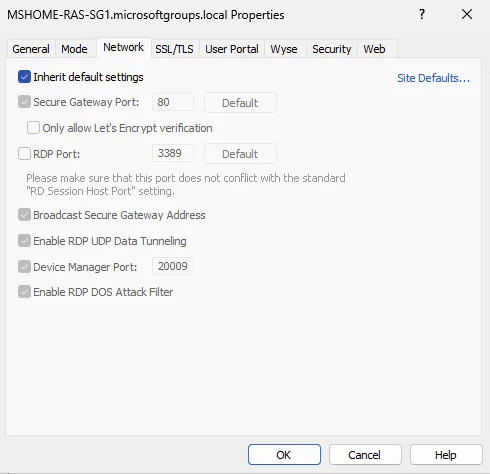
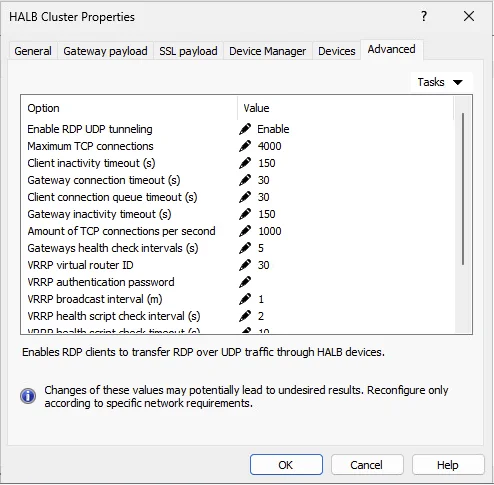
You have nothing to configure on the RAS side. UDP Data Tunneling is enabled by default on both the Secure Gateway and the HALB.
On the Secure Gateway (Network tab): Enable RDP UDP Data Tunneling is checked by default.
On the HALB (Advanced tab): Enable RDP UDP tunneling is set to Enable by default.
If you have never touched these settings, UDP is active. Full stop.
So Why Do Some Sessions Stay on TCP?
The answer always lies in the network environment around RAS, never in RAS itself. Here are the two main culprits.
DNS — The Most Common Trap
A Parallels Client configured with the external FQDN ras.client.com in Gateway SSL Mode will resolve that FQDN to the public IP via public DNS when on the LAN. The client goes through the external path, and TCP is the result. The fix: configure an internal DNS record pointing ras.client.com to the LAN VIP. Same FQDN, same certificate — DNS does the split. UDP negotiates immediately.
A Firewall Filtering UDP/443
UDP port 443 must be open along the entire path between the client and the Secure Gateway — including intermediate firewalls and the HALB. A firewall configured to allow only TCP/443 silently forces the client to remain on TCP.
Recommended Client Configuration in Production
- Primary connection:
ras.client.com— Gateway SSL Mode — port 443. On the LAN, internal DNS resolves to the LAN VIP → UDP active, minimal latency. - Secondary connection:
ras.client.com— Gateway SSL Mode — port 443. From outside, public DNS resolves to the public IP → Gateway SSL, UDP if the firewall allows it.
Same FQDN, same certificate, same client configuration. DNS does all the work.
Measured Results
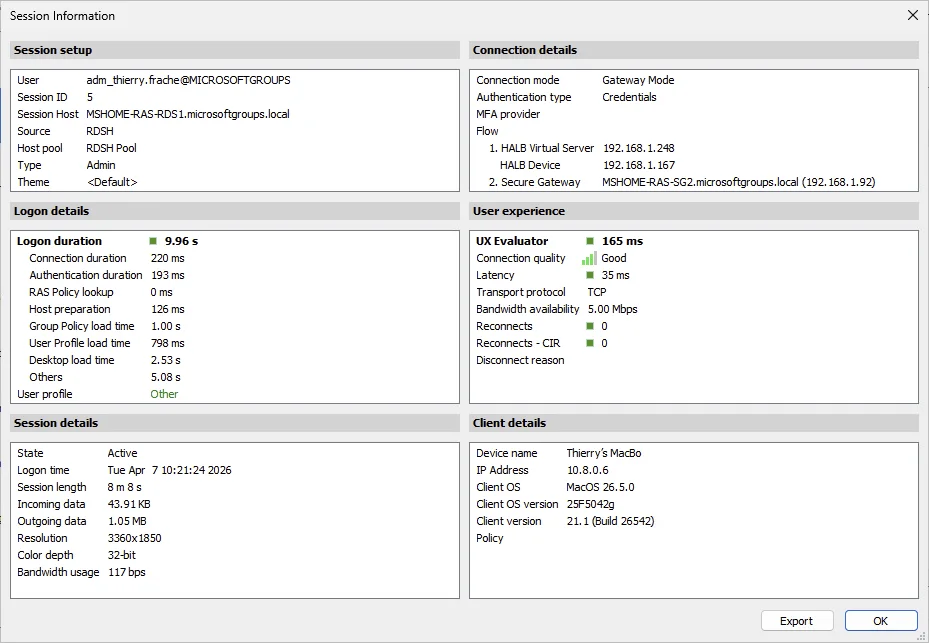
Case 1 — TCP: Public DNS, Non-Optimal Path
Gateway Mode, public DNS resolving to the external IP. Transport: TCP, latency 35ms, quality Good.
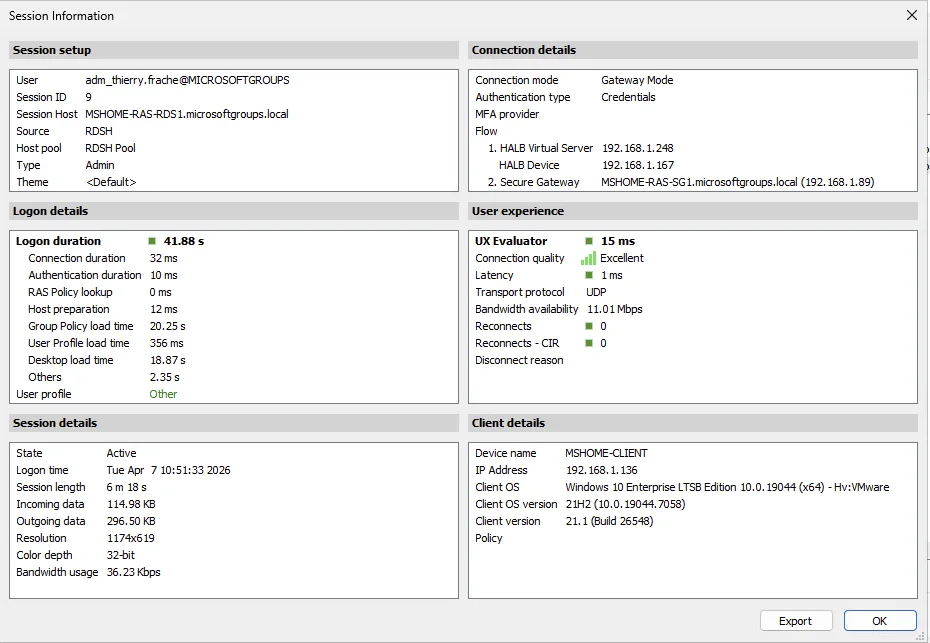
Case 2 — UDP on LAN: Direct Connection
Windows client connected directly on the LAN in Gateway Mode. Transport: UDP, latency 1ms, quality Excellent, 11 Mbps available.
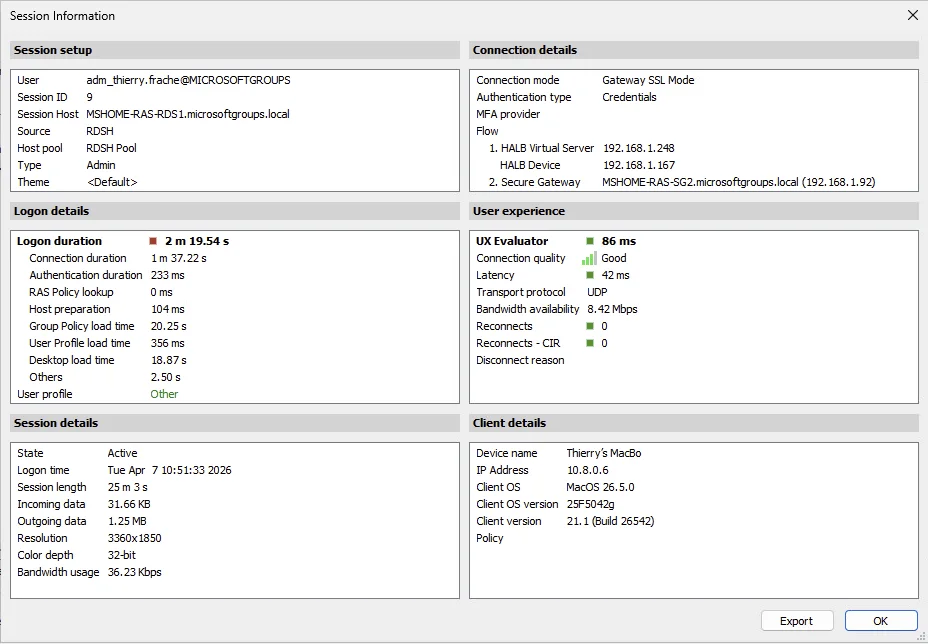
Case 3 — UDP in Gateway SSL Mode via VPN
Mac client via VPN, Gateway SSL Mode, internal DNS correctly pushed. Transport: UDP, latency 42ms, quality Good, 8.4 Mbps.
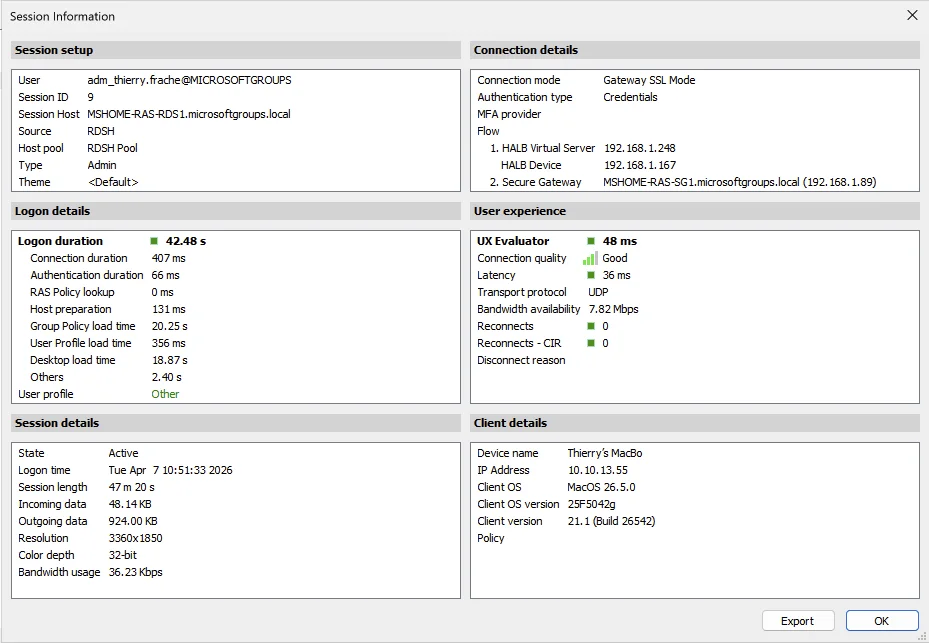
Case 4 — UDP from the Internet, UDP/443 Open
Mac client from the Internet without VPN, Gateway SSL Mode, UDP/443 open on the router. Transport: UDP, latency 36ms, quality Good, 7.8 Mbps.
Summary
| Context | Mode | Transport | Latency | Quality | Bandwidth |
|---|---|---|---|---|---|
| Public DNS, non-optimal path | Gateway Mode | TCP | 35 ms | Good | 5 Mbps |
| LAN direct | Gateway Mode | UDP | 1 ms | Excellent | 11 Mbps |
| Via VPN + internal DNS | Gateway SSL Mode | UDP | 42 ms | Good | 8.4 Mbps |
| External, UDP/443 open | Gateway SSL Mode | UDP | 36 ms | Good | 7.8 Mbps |
Checklist to Guarantee UDP
- UDP enabled on the Secure Gateway — active by default ✅
- UDP enabled on the HALB — active by default ✅
- UDP/443 open on firewalls between the client and the SG
- Internal DNS resolving the RAS FQDN to the LAN VIP for internal clients
- Gateway SSL Mode configured on the Parallels Client (port 443)
- Valid certificate on the FQDN used
Conclusion
UDP in Parallels RAS is not an option to activate — it is the default behavior. Your job as an administrator is to ensure that nothing in your network environment silently blocks it. A correctly configured internal DNS, a firewall that passes UDP/443, and a valid certificate: that is all it takes for your users to enjoy fluid RDP sessions, even on imperfect networks.