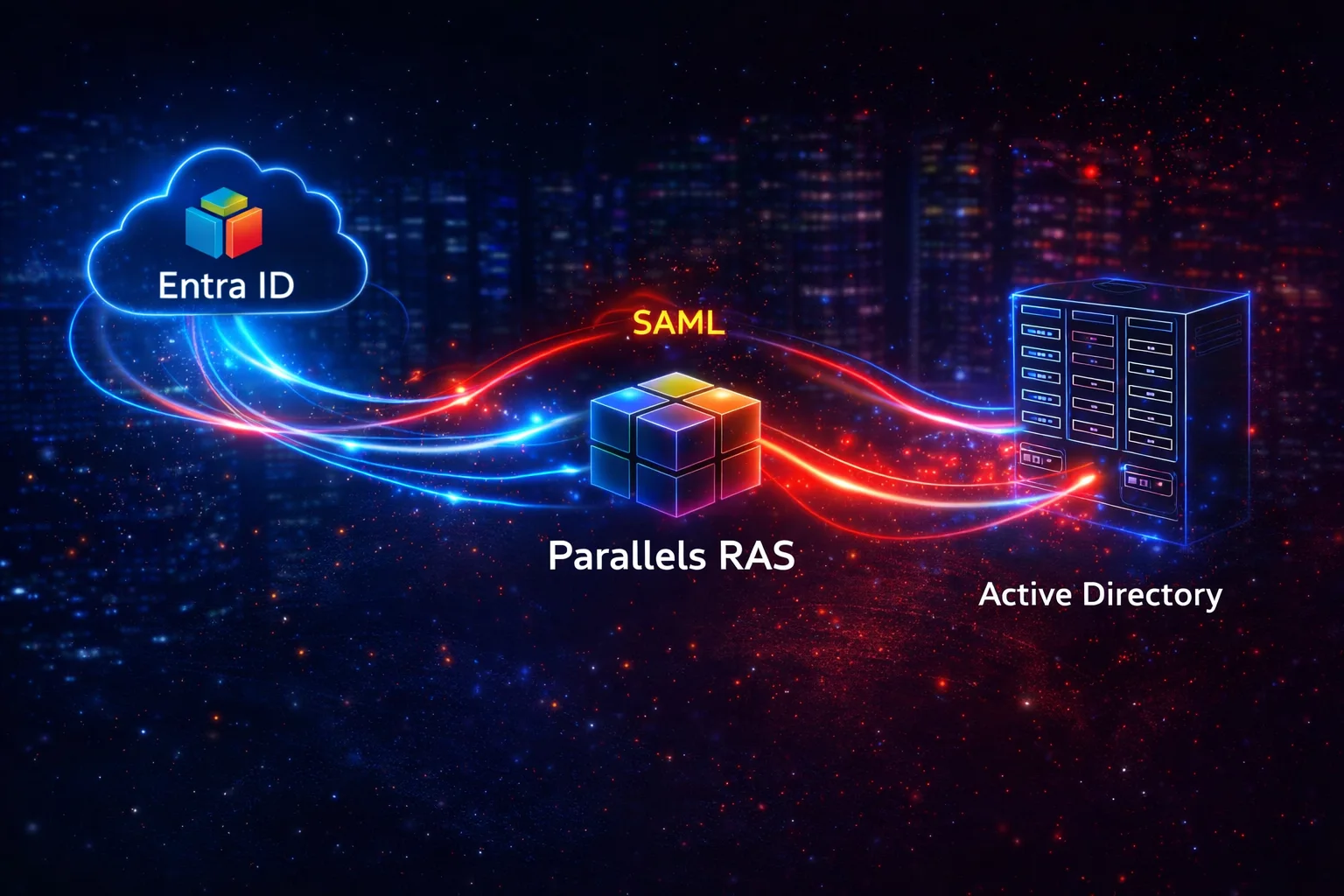
First of all, setting up SAML SSO with Parallels RAS involves more than a simple metadata exchange between two platforms. Indeed, official documentation often stays at a surface level, leaving out the technical details that ensure a successful deployment. Furthermore, administrators frequently struggle with scattered information when they connect Entra ID to their VDI farm.
Consequently, we decided to share our actual field experience to bridge this gap. Instead of just following a basic guide, you must understand how claims and attributes interact. Specifically, the system requires a perfect match between your Entra ID UPN and your local Active Directory accounts. Therefore, we will focus on the specific settings that guarantee a seamless “Full SSO” experience.
Finally, this article provides the missing links for your configuration. Clearly, you can avoid common pitfalls by paying attention to the certificate enrollment process. Follow our step-by-step approach below to simplify your identity management and improve your security posture.
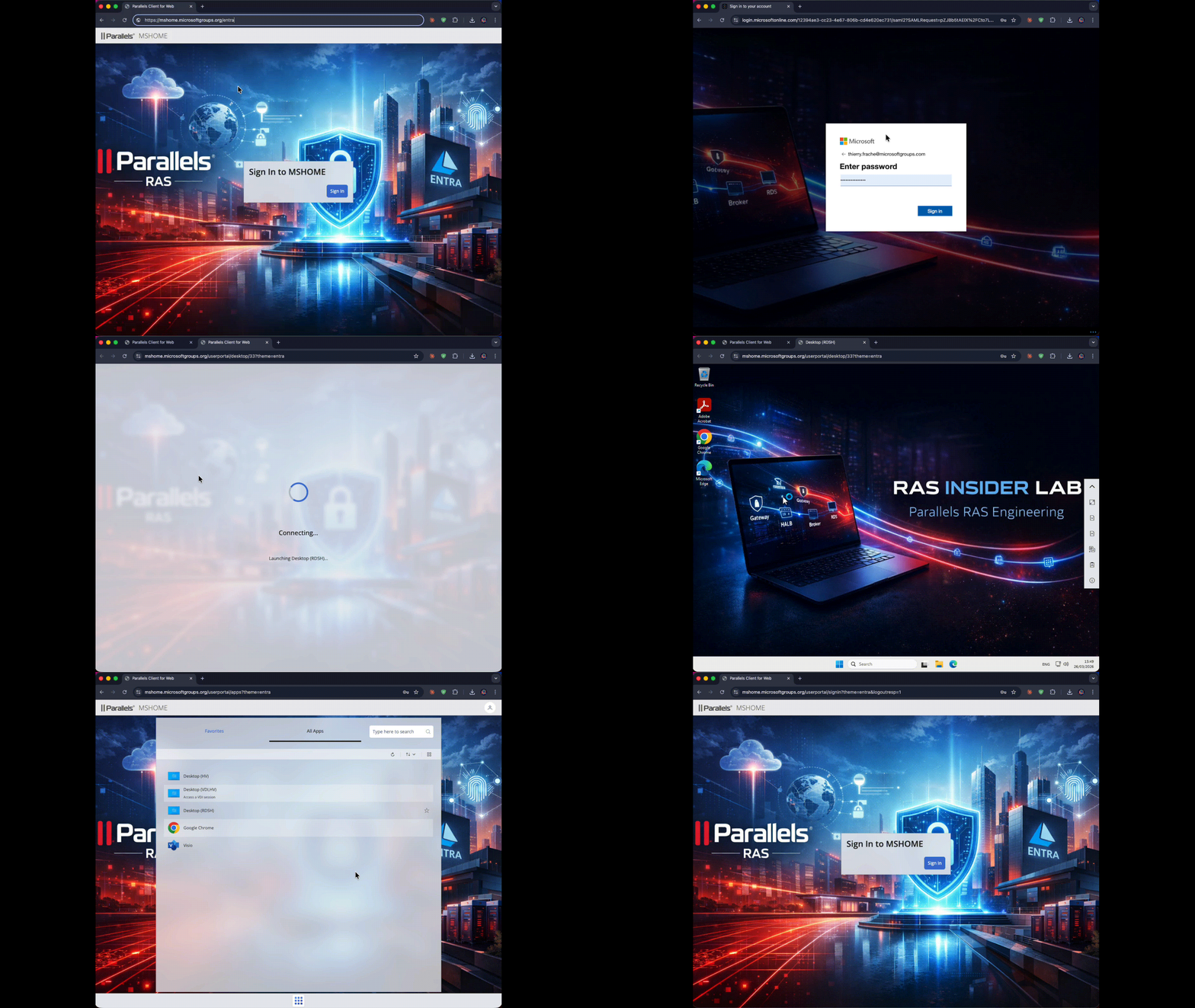
This guide covers full SSO mode: SAML authentication is propagated all the way to the RDP session, with no need for users to re-enter their AD credentials. This mode requires a PKI (AD CS) and an operational RAS Enrollment Server.
KB 124815 vs real-world experience in 2026
Before diving in, it’s worth reviewing what the official KB says — and what has changed or is missing.
What still works in KB 124815: retrieving the App Federation Metadata URL (section 3 of the Entra app), importing metadata into the RAS Console and retrieving SP URLs, the reference to KB 124813 for PKI configuration.
What no longer works: the KB instructs creating the app via “Create your own application” → “Integrate any other application you don’t find in the gallery”. This method now creates an application in OIDC mode, not SAML. The Single sign-on page shows “OIDC-based Sign-on” with no option to switch to SAML.
What the KB doesn’t mention at all: the NameID format must be unspecified, not emailAddress; the claim http://schemas.xmlsoap.org/ws/2005/05/identity/claims/name is required for AD matching and is absent from all Parallels documentation; the “Override authentication domain” field in the RAS theme is mandatory; SP URLs change index after every RAS Apply; metadata re-import is needed if the Entra certificate has changed.
Prerequisites
RAS infrastructure: Parallels RAS 21.x with at least one Connection Broker and one Enrollment Server, AD CS Enterprise CA, PrlsEnrollmentAgent and PrlsSmartcardLogon certificate templates created and published (KB 124813), service accounts svc_rasenrollment and svc_rasnla, Enrollment Server validated (CA Server, EA Credentials, NLA Credentials all green), public FQDN configured as Published Address on the RAS site.
Identity: Microsoft Entra ID tenant, Global Admin or Application Administrator rights, UPN suffix matching the Entra domain added in the on-premises AD, AD user accounts with UPN exactly matching the Entra username.
Step 1 — Create the Enterprise Application in Entra
Do not use “Create your own application” — Entra now creates the app in OIDC mode.
The correct method: Enterprise Applications → New application, then search for “Microsoft Entra SAML Toolkit” in the gallery. Select this app template, give it a meaningful name (e.g. Parallels-RAS), click Create. This app is pre-configured in SAML mode from the start.
Step 2 — Retrieve the IdP metadata URL
In the app properties → Single sign-on → SAML → section 3 “SAML Certificates”, copy the App Federation Metadata URL:
https://login.microsoftonline.com/<tenantid>/federationmetadata/2007-06/federationmetadata.xml?appid=<appid>Step 3 — Declare the IdP in the RAS Console
RAS Console → Connection → SAML → Tasks → Add. Give the IdP object a name, paste the metadata URL into Import published IdP metadata, click Next then Finish. RAS automatically imports the Entra signing certificate, SSO and logout endpoints.
On the IdP tab of the created object, check Allow unencrypted assertion. Entra does not send encrypted assertions by default — without this option, RAS fails with:
Expected 1 EncryptedAssertion; found 0.Step 4 — Retrieve SP URLs and update Entra
Double-click the IdP object → SP tab. Verify the Host field shows the public FQDN of the RAS, not the internal broker name. Copy the four URLs into Entra → Basic SAML Configuration → Edit:
| RAS field | Entra field |
|---|---|
| SP Entity ID | Identifier (Entity ID) |
| Reply URL | Reply URL (Assertion Consumer Service URL) |
| Logon URL | Sign on URL |
| Logout URL | Logout URL |
Delete the default toolkit entry in Identifier and check Default on the new one.
Watch out — SP URL index changes: RAS re-indexes the IdP object on every Apply. For example idp_-1 can become idp_2. If the URLs changed after an Apply, update them in Entra before testing, or you’ll get:
AADSTS700016: Application with identifier '...idp_2/metadata.xml' was not found in the directoryStep 5 — Configure Attributes & Claims in Entra
This is where the most important and least documented point hides.
NameID format — must be changed
Click “Unique User Identifier (Name ID)” and change the Name identifier format from Email address to Unspecified. If this format stays on emailAddress, RAS fails to parse the assertion. In the broker logs:
Failed to verify the Assertion Signature.
SAML ID: 2 - Parse Post Assert error
The name claim — undocumented by Parallels
RAS uses the claim http://schemas.xmlsoap.org/ws/2005/05/identity/claims/name to identify the user in the local AD. This claim must be present in the assertion and contain the user’s UPN. The Entra SAML Toolkit adds it by default mapped to user.userprincipalname — verify it is present in the Additional claims list.
Without this claim, RAS loops on Failed to match AD User (0x00000006) even when the NameID is perfectly configured — and no log explains why. This point is absent from every Parallels KB to date.
Step 6 — Re-import IdP metadata if needed
After any modification in the Entra app, especially if a new signing certificate was generated, the cached certificate on the RAS side may no longer match. Symptom in the broker logs:
Failed to verify the Response Signature.Fix: IdP object properties → IdP tab → re-import the metadata URL. This refreshes the Entra certificate on the RAS side.
Step 7 — Configure the RAS theme
RAS Console → Farm → Site → Themes → theme properties → Access tab:
- SAML Single Sign-on IdP: select the IdP object created in step 3
- Override authentication domain: check and select the AD NetBIOS domain (e.g.
MICROSOFTGROUPS)
This second point is essential. RAS searches for the user in AD by sAMAccountName, not by full UPN. Without the domain override, RAS tries to find [email protected] as a sAMAccountName — which matches no object. With the domain override set, RAS strips the suffix and searches for thierry.frache only.
Step 8 — Assign users in Entra
Entra app → Users and groups → Add user/group — assign the authorized users or groups. Without this assignment, Entra returns AADSTS50105 at authentication.
Step 9 — Check PKI templates
If the Enrollment Server returns error 0x8009480b:
Failed to enroll certificate for user [UPN]
One or more signatures did not include the required application or issuance policies.
The request is missing one or more required valid signatures.
The PrlsSmartcardLogon template is not correctly configured. Check the Issuance Requirements tab: “This number of authorized signatures” = 1, “Policy type required in signature” = Application Policy, “Application policy” = Certificate Request Agent. Refer to KB 124813 for the full template configuration.
Summary — traps to avoid
| Error observed | Root cause | Fix |
|---|---|---|
| App created in OIDC mode | “Create your own app” generates OIDC | Use the SAML Toolkit from the gallery |
| AADSTS700016 | SP URLs with old index after Apply | Update URLs in Entra |
| Unable to parse SAML Assertion | NameID format = emailAddress | Switch to Unspecified |
| Failed to verify Response Signature | Stale Entra certificate in RAS cache | Re-import IdP metadata |
| Failed to match AD User (0x00000006) | Missing name claim or domain override | Check claim + Override authentication domain |
| 0x8009480b | PrlsSmartcardLogon template misconfigured | Check Issuance Requirements (KB 124813) |
SAML full SSO between Parallels RAS and Entra ID is documented at surface level, but the details that make the difference are scattered or missing. The most critical point — the http://schemas.xmlsoap.org/ws/2005/05/identity/claims/name claim — does not appear in any Parallels KB to date.