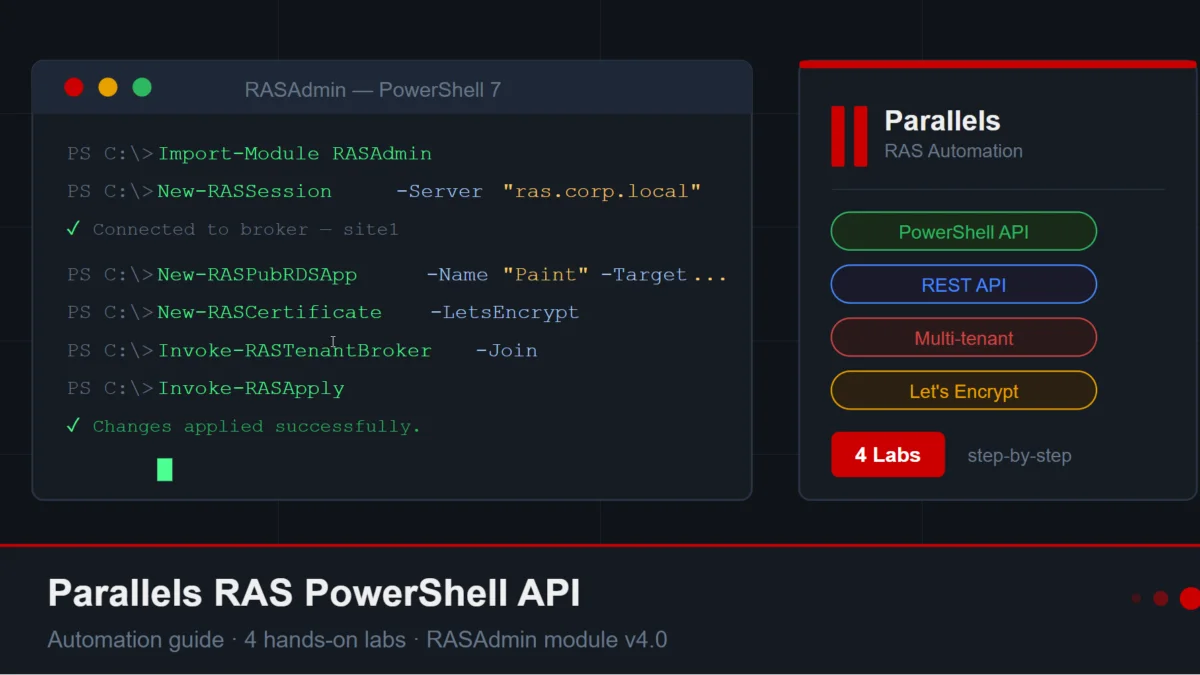
When thinking about Parallels RAS, most administrators think of its graphical interface. However, there is much more beyond this console, especially when using the Parallels RAS PowerShell API to manage resources and users. Thanks to the Parallels PowerShell API (RASAdmin module), it is possible to automate all administration operations: application publishing, access filter management, certificate provisioning, tenant integration… All of it scriptable, versionable, and integrable into your CI/CD pipelines or ITSM tools.
This article offers: an overview of the capabilities offered by the PowerShell API, concrete advantages for IT teams, technical prerequisites, and a series of progressive labs for hands-on practice.
What the Parallels RAS PowerShell API Can Do
The golden rule is simple: everything that can be done in the Parallels RAS graphical console can be achieved via the PowerShell API. Here are the main operation categories:
1. Published Resource Management
- Publish applications and remote desktops
- Apply access filters (users/groups, IP ranges, client types…)
- Manage authorization/denial rules on published items
2. Certificate Management
- Create and deploy SSL certificates (manual or Let’s Encrypt)
- Configure automatic renewals
- Associate certificates with Secure Gateways or load balancers
3. Multi-Tenant Architecture
- Join a Tenant Broker from a script
- Generate secret keys for tenant registration
- Automate onboarding of new environments
4. Global Farm Configuration
- Manage brokers, gateways, and RDS server pools
- Apply configurations in an idempotent manner
- Integrate Parallels RAS into Ansible, Terraform, or deployment scripts
Furthermore, the RASAdmin PowerShell module exposes all resources via a REST API (port 20443), enabling integration from any language or platform.
Advantages of Automation via PowerShell API
Time Savings and Consistency
Instead of manually reproducing the same operations for each new environment, a PowerShell script guarantees an identical configuration at each execution. No more oversights, no more human configuration errors.
Integration into DevOps Pipelines
RASAdmin scripts can be executed from Azure DevOps, GitHub Actions, Jenkins, or any other CI/CD system. This opens the door to “infrastructure as code” provisioning for your Parallels RAS environments.
Traceability and Auditability
A script versioned in Git represents a clear history of every change made to the infrastructure. In the event of an incident, it is possible to replay or undo a specific configuration.
Scalability
As a result, whether you manage 5 or 500 tenants, the administration effort remains constant. A single script can provision dozens of environments in a matter of seconds.
Cross-Platform Compatibility via REST
Beyond PowerShell, the Parallels RAS REST API allows interaction from any tool capable of making HTTP requests: Postman, Python, web applications, etc.
Prerequisites
- Windows Server (or Windows workstation) with PowerShell 5.1 or PowerShell 7+
- Parallels RAS installed (Connection Broker in place)
- Network access to the server hosting the Connection Broker
- RAS administrator account with sufficient rights
Installing the RASAdmin Module
Option 1 — First of all, if you prefer a graphical installation, you can launch the standard Parallels RAS installer. Then, simply choose ‘Custom installation’ and select the ‘Parallels RAS PowerShell’ component.
Option 2 — Silent installation (MSI):
msiexec /i RASInstaller-*.msi ADDLOCAL=F_PowerShell /qnImportant: the RAS PowerShell binary version must exactly match the RAS Connection Broker version. A version mismatch causes connection errors.
Verifying and Importing the Module
Import-Module RASAdmin
Get-Command -Module RASAdmin
Full documentation: https://docs.parallels.com/landing/ras-powershell-api-guide
Lab Series — Hands-On Practice
0 — Connection and First Command
$username = "apiuser"
$password = "YourPassword!"
$server = "rasbroker.your-domain.local"
$passwordEnc = ConvertTo-SecureString $password -AsPlainText -Force
New-RASSession -Username $username -Password $passwordEnc -Server $server
Get-RASBroker
Remove-RASSession
1 — Publishing an Application and a Desktop
$passwordEnc = ConvertTo-SecureString $password -AsPlainText -Force
New-RASSession -Username $username -Password $passwordEnc -Server $server
$pool = Get-RASRDSHostPool -Name "RDSH Pool"
$desktop = New-RASPubRDSDesktop -Name "MyDesktop" -PublishFrom HostPool -PublishFromHostPoolIds $pool.Id -DesktopSize UseAvailableArea
$app = New-RASPubRDSApp -Name "Paint" -PublishFrom HostPool -PublishFromHostPoolIds $pool.Id -Target "%windir%\system32\mspaint.exe"
Invoke-RASApply
Remove-RASSession
2 — Adding Access Filters
New-RASSession -Username $username -Password $passwordEnc -Server $server
$app = Get-RASPubRDSApp -Name "Paint"
Add-RASRule -Id $app.Id -ObjType PubItem -RuleName "MyFilter"
$rules = Get-RASRule -Id $app.Id -ObjType PubItem
Set-RASCriteria -Id $app.Id -ObjType PubItem -SecurityPrincipalsEnabled $true -IPsEnabled $true -RuleId $rules[0].Id
Add-RASCriteriaSecurityPrincipal -Id $app.Id -ObjType PubItem -RuleId $rules[0].Id -Account "Guests"
Add-RASCriteriaIP -Id $app.Id -ObjType PubItem -RuleId $rules[0].Id -IPType Version4 -IP "192.168.1.1-192.168.1.50"
Set-RASPubItemFilter -Id $app.Id -Default Deny
Invoke-RASApply
Remove-RASSession
3 — Creating a Let’s Encrypt Certificate
New-RASSession -Username $username -Password $passwordEnc -Server $labServer
Set-RASLetsEncryptSettings -SiteID 1 -TermsAccepted $true
Invoke-RASApply
New-RASCertificate -Name "CertGateway" -CommonName "ras.your-public-domain.com" -Email "[email protected]" -LetsEncrypt -Enabled $true -Organisation "Your Organisation" -KeySize KeySize2048 -Usage Gateway
Invoke-RASApply
Remove-RASSession
4 — Joining a Tenant Broker
New-RASSession -Username $username -Password $password -Server $tenantBroker
Set-RASTenantBrokerSettings -AllowRegistrationWithSecretKey $true
Invoke-RASApply
$secretKey = Invoke-RASTenantBrokerSettings -Command GenerateHash
Invoke-RASApply
Remove-RASSession
New-RASSession -Username $username -Password $password -Server $labServer
Invoke-RASTenantBroker -Join -HashKey $secretKey -TenantBroker $tenantBroker -PublicDomainAddresses "lab1.your-public-domain.com" -TenantName $labServer
Invoke-RASApply
Remove-RASSession
Best Practices
- Never store passwords in plain text — use Windows Credential Manager, Azure Key Vault, or CI/CD secrets.
- Always call Invoke-RASApply — without it, changes remain pending.
- Properly close the session — use Remove-RASSession in a try/finally block.
- Version your scripts — store them in Git for traceability and rollback capability.
Official Ressources :
- The comprehensive guide for PS automation : https://docs.parallels.com/landing/ras-powershell-api-guide
- Essential resources for web-based integrations : https://docs.parallels.com/landing/ras-rest-api-guide
- Test the full feature set in your lab : https://parallels.com/products/ras/try
Conclusion
The Parallels RAS PowerShell API transforms publishing infrastructure management into a reproducible, auditable, and scalable process. Indeed, whether you are a system administrator looking to save time on repetitive tasks or an architect integrating Parallels RAS into a DevOps pipeline, these cmdlets provide the precise control you need. The lab series in this article provides a solid foundation — explore the official documentation and experiment.