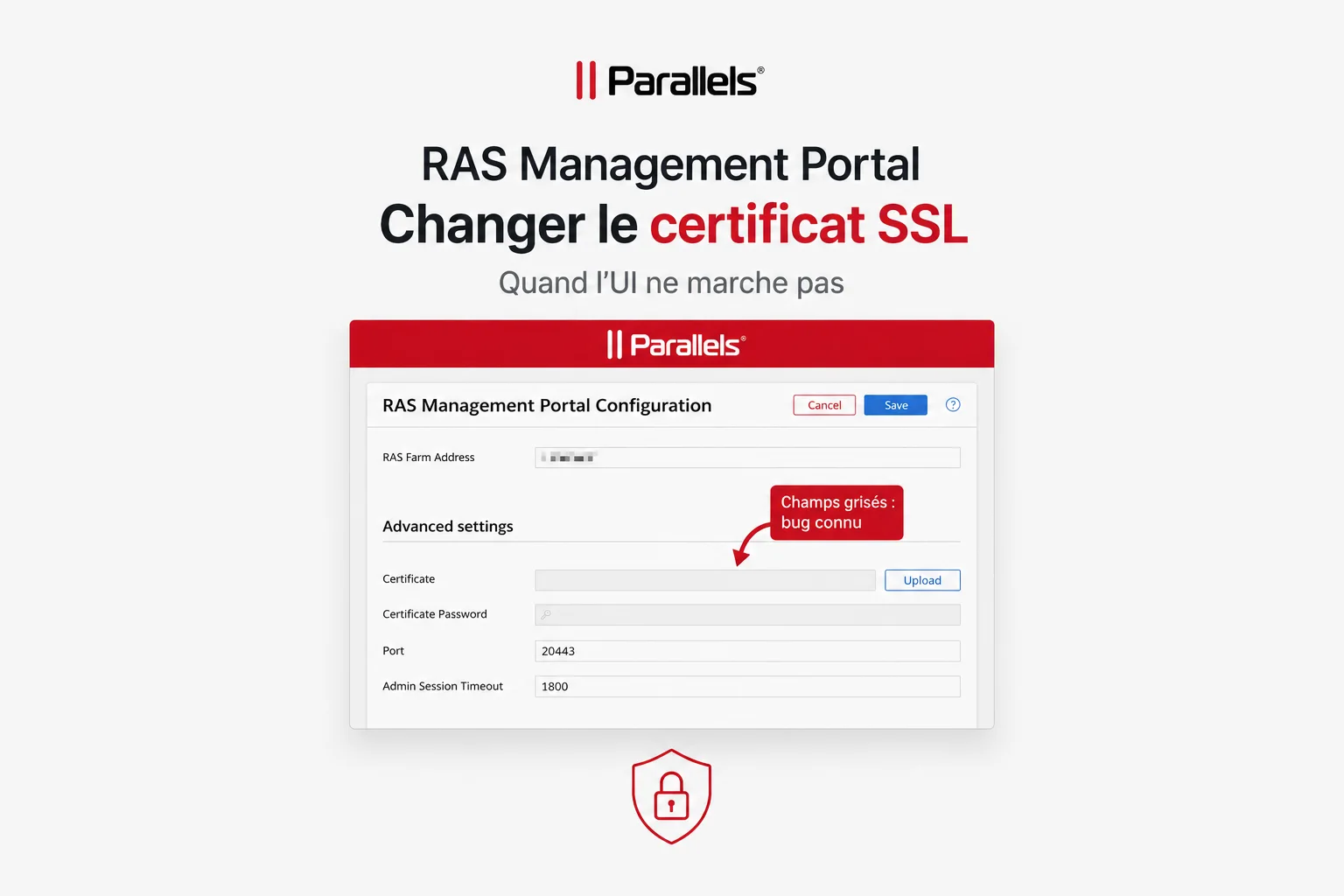
The RAS Management Portal (WebAdminService) listens on port 20443 by default, using a Parallels self-signed certificate. To replace it with an internal or public certificate, the official procedure points to the web interface at https://localhost:20443/console/config/properties. In practice, this does not always work.
The UI Bug
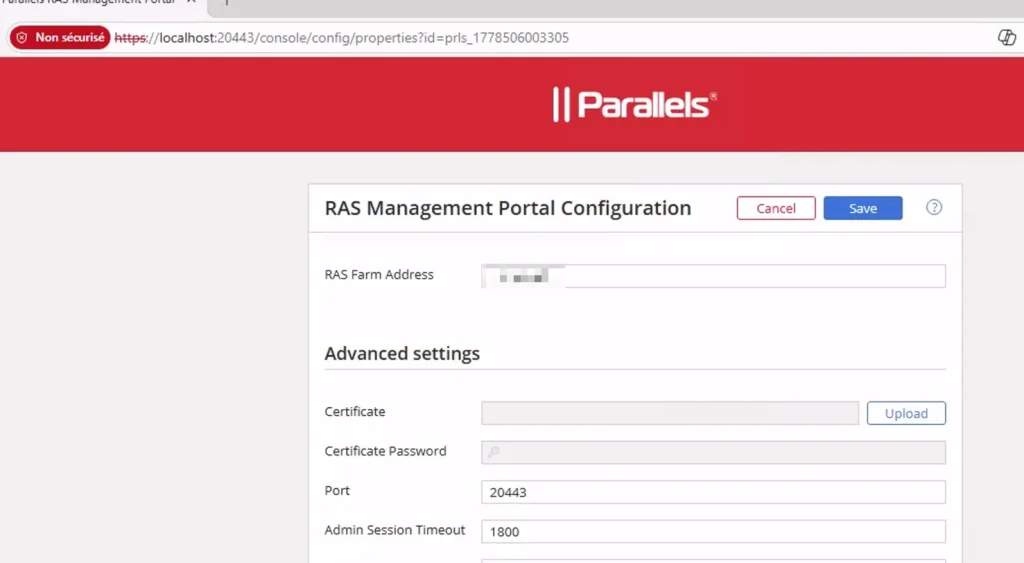
On some installations (observed on RAS 21.1 across multiple Management Portal servers), the Certificate and Certificate Password fields remain greyed out even when accessing the interface locally from the server itself, using a dedicated local administrator account. The Upload button is active and the file selection dialog opens, but after selecting the PFX file no password prompt appears and the fields remain empty.
This behavior is reproducible across multiple servers with the same result. If you find yourself in this situation, the only alternative is to edit the configuration file directly.
The JSON File Edit Procedure
The RAS Web Administration Service stores its configuration in:
C:\Program Files (x86)\Parallels\ApplicationServer\WebAdminService\appsettings.jsonBefore making any changes, stop the service and create a backup:
Stop-Service "RAS Web Administration Service"
Copy-Item "C:\Program Files (x86)\Parallels\ApplicationServer\WebAdminService\appsettings.json" `
          "C:\Program Files (x86)\Parallels\ApplicationServer\WebAdminService\appsettings.json.bak"
Copy your PFX file to the server, for example:
C:\ProgramData\Parallels\RASCert\portal.mydomain.local.pfxEdit the HttpsDefaultCert block in appsettings.json as follows:
"HttpsDefaultCert": {
  "Url": "https://*:20443",
  "Certificate": {
    "Path": "C:\\ProgramData\\Parallels\\RASCert\\portal.mydomain.local.pfx",
    "Password": "YourPFXPassword"
  }
}
Key points:
- Use the
Passwordkey (plaintext password), notEncryptedPassword. - Paths in the JSON file use double backslashes (
\\). - The PFX file must be readable by the account running the service.
Start-Service "RAS Web Administration Service"On first startup, the service reads the plaintext password, encrypts the value and rewrites the file, replacing Password with EncryptedPassword containing the encrypted value. This is the expected behavior.
Validate the PFX Before Deploying
A corrupted or empty PFX will cause the service to fail at startup with no explicit error message in the interface. Before editing appsettings.json, always validate your PFX file using certutil:
certutil -dump C:\ProgramData\Parallels\RASCert\portal.mydomain.local.pfxThe command should display the certificate attributes (Subject, Issuer, validity dates). If the output shows only zeros or empty bytes, the file is corrupted and must be regenerated before any deployment attempt.
Summary
The plaintext Password key in appsettings.json is the method supported by Parallels for manual editing. The service handles encryption itself on first startup. The EncryptedPassword key is intended for internal use only — it is generated by the service itself or by the UI when it works correctly.